PhotoToDeck fits each photo inside its slide while preserving the image’s proportions. It does not stretch or crop the photo. When a photo and slide have different shapes, the selected black or white slide background remains visible around the image.
Why are there black bars beside my photo?
A widescreen slide is wider than many camera photos. To show the whole image, the photo must fit within both the slide’s width and height. A portrait photo reaches the slide’s top and bottom while leaving space at the sides. A very wide image can leave space above and below.
The visible background is expected when preserving the full photo. It keeps faces, artwork and other details near the edges in view. Stretching the photo would change its proportions; cropping it would remove part of the image.
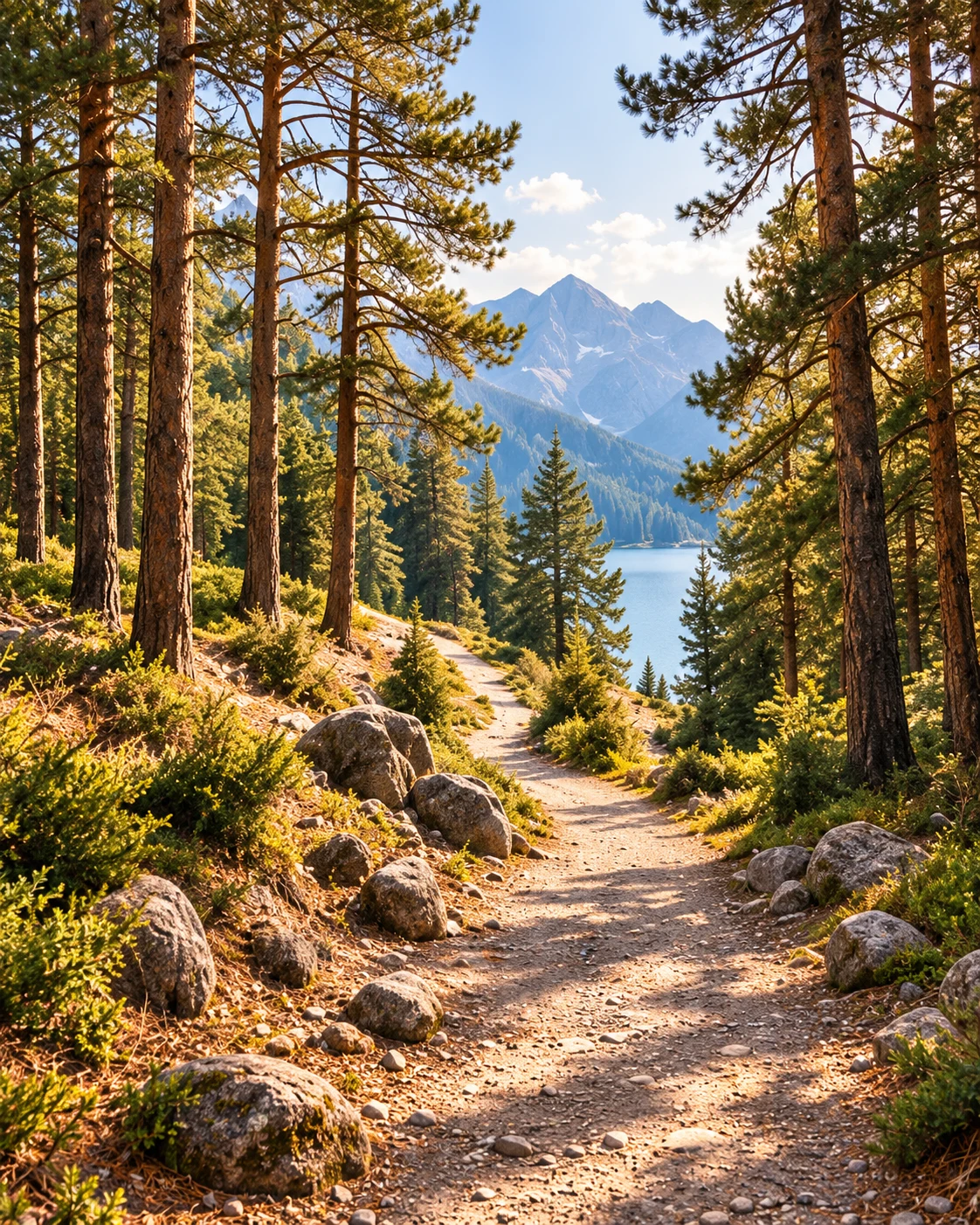
Illustrative examples using the same sample image, not screenshots of the add-on.
Choose the background for your collection
A black background can make a colorful travel or event photo stand out. White can suit scans, product images, or artwork with a light border. There is no requirement to use one over the other: preview a portrait and a landscape image to see which feels consistent across your collection.
- Choose your JPEG and PNG photos in PhotoToDeck.
- Select Black or White in the Background control.
- Open a photo preview and inspect its edges.
- Check a photo with a different shape before starting the import.
The background choice applies to the import. For a presentation built in multiple batches, use the same choice each time if you want a consistent frame. Continue editing the resulting slides in Google Slides for any individual adjustments.
What if I want the photo to reach every edge?
With whole-photo fitting, that depends on matching the photo’s aspect ratio to the slide’s aspect ratio. When the shapes differ, a full-bleed result requires cropping or changing the layout. PhotoToDeck does not offer an automatic crop-to-fill mode.
If a full-bleed composition matters more than preserving the entire image, prepare a cropped copy in an image editor before importing. Keep the original. Check faces, text and objects close to the edges before committing to the crop.
Can I mix portrait, landscape and square photos?
Yes. Each image is fitted individually within its new slide. A mixed collection will have different amounts of background visible, which is normal. A consistent background and a thoughtful photo sequence help the presentation feel intentional.
Will fitting a photo make it sharper?
Fitting controls the layout, not the amount of detail in the source file. Start with the best available copy and avoid repeatedly saving a compressed image. Preview the finished presentation at the size you expect to show it. A small screenshot can look soft when displayed on a large screen.
Try the layout before importing
The website demo lets you compare black and white backgrounds using sample photos. It does not upload your files or connect to Google. When you are ready to use your own photos, follow the bulk import guide.